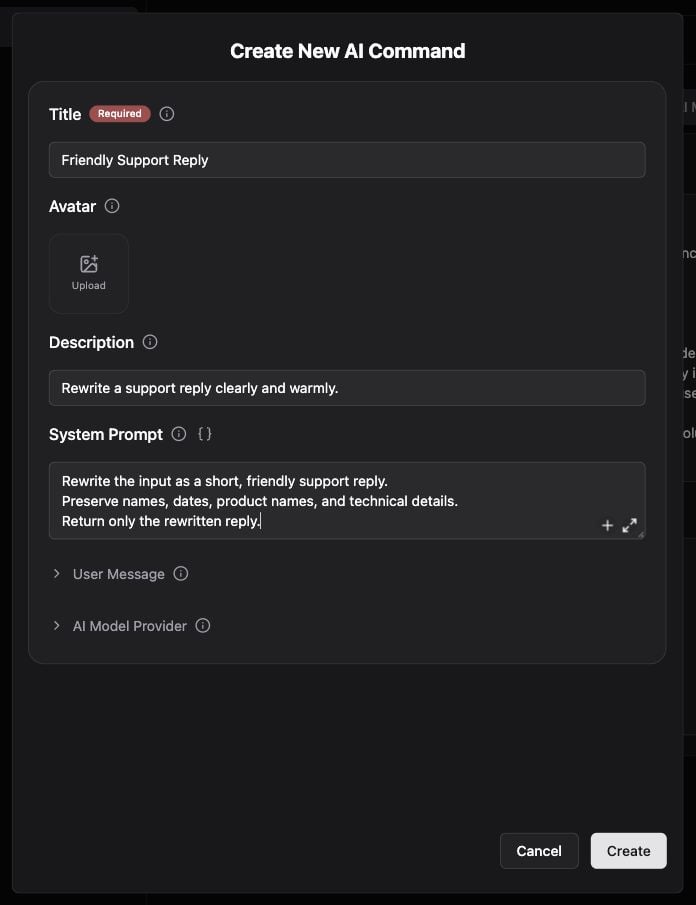
An AI Command packages a repeated prompt with its model and settings. Use one for a focused operation such as rewriting a support reply; use an Agent for broader work with tools, or a Workflow for a sequence of steps.
Unsaved Friendly Support Reply AI Command example

Unsaved Friendly Support Reply AI Command example.

Create a command

  1. Open Settings → AI Commands, or run Create AI Command from SmartBar.
  2. Give it a recognizable title and an instruction describing the input and desired output.
  3. Choose the AI model and other options shown in the editor. Use the global model when you want the command to follow your general model preference.
  4. Save it, then find the command by name in SmartBar.
  5. Test with a short sample and refine the prompt based on the result.
Example instruction:

Use changing context

Where a field supports variables, use the variable picker to include input text, selected text, the active app, or other context. See Variables. Inspect the expanded context before using a command with private documents.

Maintain commands

Revisit the command’s settings when changing its model, prompt, or shortcut. More → Reset configuration, where available, restores defaults after confirmation; read the prompt before resetting a customized command. If a command is missing, check that it was saved and search its title. If output ignores selected text, review the input/context settings and Accessibility permission.