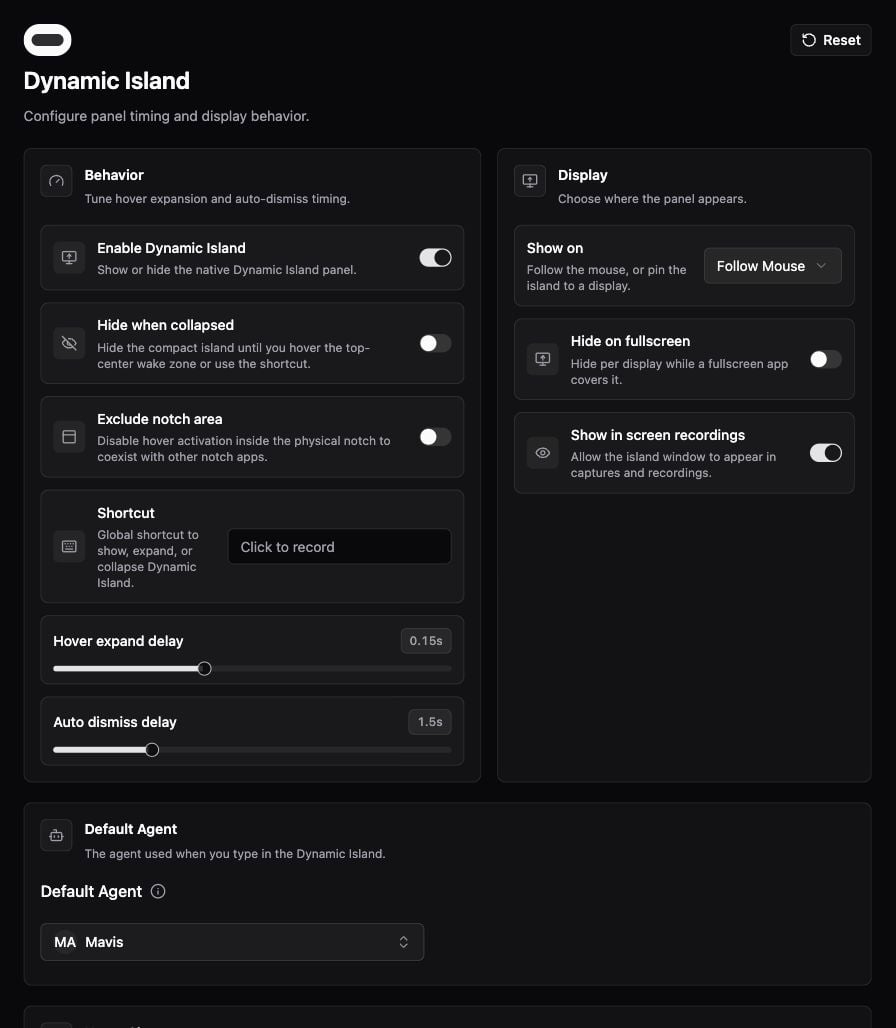
The Dynamic Island keeps quick Agent requests and activity near the top of your display. You can type, use voice, attach context, and return to an in-progress conversation.
Dynamic Island behavior, display, and default Agent settings

Dynamic Island behavior, display, and default Agent settings.

Start a request

  1. Open Settings → Primary Function Area → Dynamic Island and enable it.
  2. Move to the top-center wake area or use the configured Shortcut to expand it.
  3. Type a request, or select one of the Home Shortcuts.
  4. Review any attached context before submitting. Appshots and Screen Doodle help you ask about other apps.
  5. Follow progress and open the result when the task finishes.

Make it fit your desktop

Voice and completion

Live Voice offers a spoken conversation; ordinary voice input transcribes a prompt. Starting Live Talk from SmartBar hands the call to the Dynamic Island in current builds. Choose whether a completed island session expands automatically under Notifications. That setting is separate from macOS notifications.

Troubleshooting

If it appears on another display, check the Display setting. If it disappears in fullscreen or does not appear in a screen recording, check the corresponding visibility setting before changing permissions. Use the shortcut to distinguish a hover-activation issue from a disabled panel.