Overview

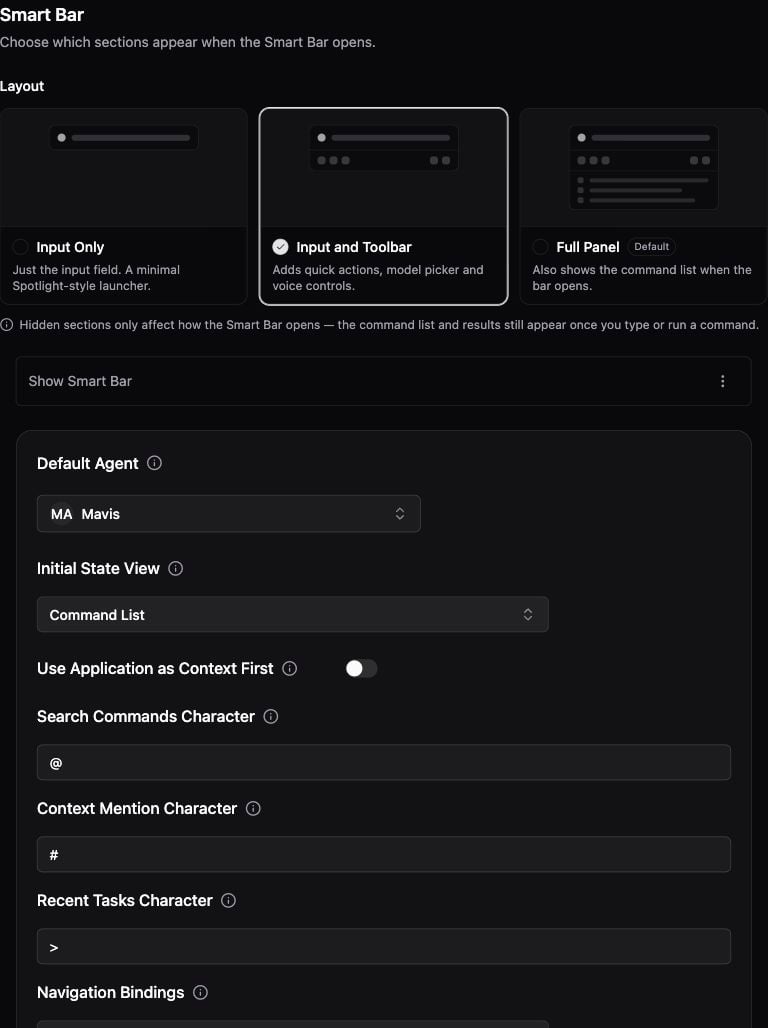
SmartBar is EnConvo’s flagship feature - a Spotlight-like interface that gives you instant access to AI assistance from anywhere on your Mac. It understands the context of your current work and provides intelligent suggestions.

Opening SmartBar

Press ⇧⌘D (Shift + Command + D) anywhere on your Mac to open SmartBar.
You can customize this shortcut in Settings → SmartBar.

Key Features

Context-Aware Responses

SmartBar automatically detects:
  • Active application: Knows if you’re in a browser, text editor, or other app
  • Browser tabs: Can read and understand the content of your current webpage
  • Finder selections: Recognizes selected files and folders
  • Clipboard content: Can process recently copied text or images
Manual context can be added with the # prefix:
  • #xcode: Include the current Xcode project context
  • #safari: Include the current Safari tab context
  • #screen: Include the current screen content context
  • #browser: Include the current browser content context

Quick Commands

Type natural language commands to get instant results:
CommandExample
Ask questions”What is the capital of France?”
Summarize content”Summarize this page”
Write content”Write a professional email about…”
Translate text”Translate to Spanish: Hello world”
Calculate”Calculate 15% tip on $85”
Search”Search for React documentation”

Plugin Integration

SmartBar integrates with 1000+ plugins. Type @ to see available plugins:

Voice Input

Use the microphone button or your dictation hotkey to speak directly into SmartBar. This is useful for short agent commands, quick follow-up questions, or hands-free prompts while you are working in another app. Voice input uses the dictation provider selected in Settings → Dictation. For provider selection and troubleshooting, see Dictation.

Update Button

When EnConvo detects a newer version for your selected update channel, SmartBar can show an Update button in the titlebar. Click it to open the update flow.
Update checks run in the background when SmartBar is shown and are throttled so the same check is not repeated more than once within 10 minutes.
For channel setup, see Updates.

Using SmartBar

1

Open SmartBar

Press ⇧⌘D to open the SmartBar overlay
2

Enter your query

Type your question, command, or use a plugin prefix
3

Add context (optional)

  • Press # to add available context
  • Press @ to add tools as context
4

Execute

Press Enter to submit your query and receive a response

Context Modifiers

Enhance your queries with context modifiers:
ModifierUsageDescription
#screenInclude current screenAdds screenshot context
#finderInclude current Finder selectionAdds selected files and folders
#clipboardInclude clipboard contentAdds copied content
#browserInclude current browser tabAdds webpage content

Keyboard Shortcuts

ShortcutAction
⇧⌘DOpen/Close SmartBar
⌘ NNew conversation
⌘ PPin/Unpin SmartBar
↑ / ↓Navigate history

Mentions And Model Switching

SmartBar supports quick routing while you type:
InputUse it for
@Mention plugins, apps, websites, Knowledge Base content, or other context sources
/Open command and model shortcuts
ReturnSubmit the current request or confirm the selected mention/command
If you mention a command or model, SmartBar keeps the routing attached to the current prompt so the response uses the intended tool or provider.

Built-in Calculator

SmartBar includes an inline calculator. Type any math expression directly into the SmartBar input:
When a math expression is detected, SmartBar shows a calculator result card with:
  • The expression and computed result
  • An operation label describing the calculation
  • Press Enter to copy the result to your clipboard
The calculator uses JavaScriptCore for safe expression evaluation, supporting standard arithmetic, trigonometric functions, and more.

Tips & Tricks

SmartBar understands natural language. Instead of keywords, ask complete questions like “How do I center a div in CSS?” or “What’s the weather like today?”
You can chain multiple actions: “Translate this to French, then summarize it in 3 bullet points”
Press ⌘⇧ C to copy the AI response, or click the copy button

PopBar

Context menu for selected text

Context Awareness

Learn how EnConvo understands your screen