

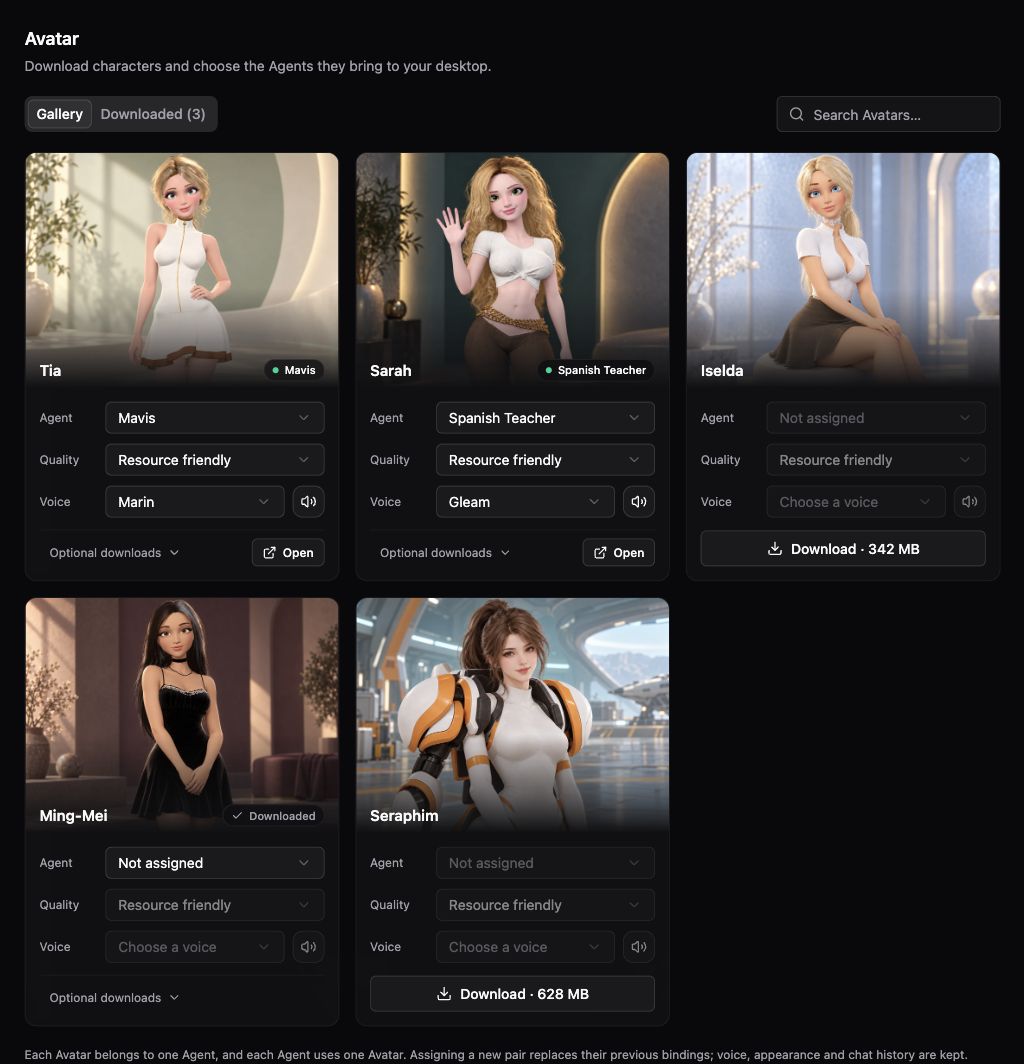
Avatar gallery showing Agent assignment, rendering quality, voice, and optional downloads.
Set up a character
- Open Settings → Agents → Avatar.
- Choose a character in the gallery and download its base package.
- Assign an Agent when prompted. Each Agent has one Avatar assignment, and each character is assigned to one Agent.
- Choose the character’s Quality and Voice. Voice changes apply to the next voice conversation.
- Click Open to show the assigned Agent’s Avatar.
Talk and interact
Set up Realtime Voice, then use the Avatar’s conversation controls to start talking. Right-click the character for available voice, history, settings, and character controls. The chat bubble shows conversation text and voice activity. You can move the character, use scroll to rotate it, and use Control-scroll or a pinch gesture to zoom. Transparent margins allow clicks to pass through to the desktop.Character selection and Agent identity
The desktop Character menu does not reassign Agents. Selecting a character assigned to another Agent opens that Agent’s Avatar. An unassigned character is shown through the main Agent. Change permanent assignments in Settings. The Avatar switch in the menu bar or Dynamic Island opens the main Agent with its assigned character.Troubleshooting
A Pet is a separate desktop companion with different controls.