Voice Note records an idea into a knowledge base so you can find it later. Use Dictation when you want text inserted into another app instead.
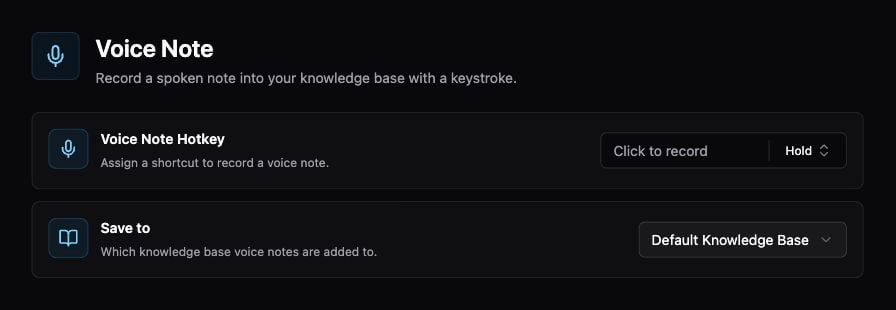
Voice Note hotkey and destination knowledge base

Voice Note hotkey and destination knowledge base.

Save a note

  1. Create or choose a Knowledge Base.
  2. Open Settings → Memory → Voice Note.
  3. Set Save to to the destination knowledge base and review Voice Note Hotkey.
  4. Invoke the hotkey and record a short note. End the recording using the recording controls.
  5. Open the destination knowledge base and review the saved item and transcription.

Make notes easier to find

Include the subject and useful names in the recording: “Project Atlas: ask the designer for the updated onboarding icons.” Review important names, numbers, and dates in the transcript before relying on them.

Troubleshooting

If there is no audio, check Microphone permission and the selected input device. If the note is not where expected, check Save to. If transcription fails, inspect the error and the configured speech provider rather than recording the same note repeatedly. See Speech Assets for vocabulary and speaker management, and Quick Capture for saving visible app content.