

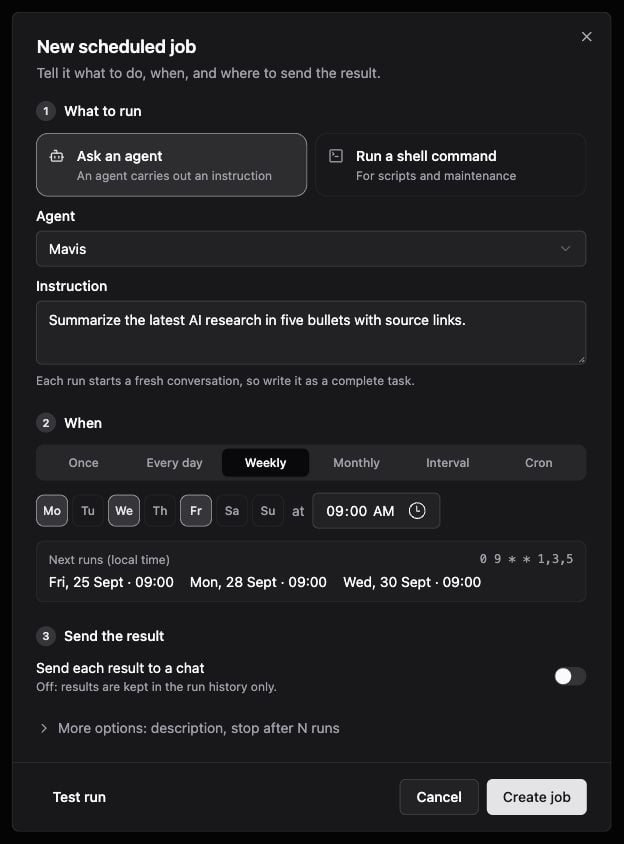
Unsaved scheduled Agent job with a weekly schedule.
Create a job
1
Open Scheduled Jobs
Go to Settings → Agents → Scheduled Jobs and select Create a job. You can also ask an Agent to schedule a task when its scheduling tools are available.
2
Choose what to run
Name the job. Choose Ask an agent, select an Agent, and write a complete instruction. Each run starts a fresh conversation. For a script, choose Run a shell command and supply the command and any working-directory options shown.
3
Set the schedule
Choose Once, Every day, Weekly, Monthly, Interval, or Cron. Check the Next runs (local time) preview before saving.
4
Choose where results go
Leave Send each result to a chat off to keep results in run history. Turn it on to select a connected IM channel and chat. You may need to talk to the Agent in that chat first so it appears in the picker.
5
Test and save
Use Test run to save and execute the job immediately, or Create job to save it for its scheduled time. Test run really executes the instruction or script; use a harmless example while learning.
A weekly Agent job with an example instruction; this draft has not been saved.
Read the run history
Open a job’s history to see whether execution succeeded, the output, and any delivery error. Open conversation opens the Agent run; Copy copies its output. Send again attempts delivery again and sends a real message to the configured destination.
Use Needs attention to find failed runs or failed deliveries. Search, status filters, and batch pause/resume help manage a larger list.
Scheduling details
- Enconvo must be running and your Mac available for local jobs to execute. Do not treat a sleeping or offline Mac as an always-on scheduler.
- One-time jobs require a future date. After running, they have no next run.
- Monthly dates 29–31 are skipped in months without that date.
- Check the displayed local-time preview, especially after travel or a time-zone change.
- More options includes a description and a maximum run count.
- Run history is bounded; copy important outputs elsewhere before clearing history or deleting a job.