> ## Documentation Index
> Fetch the complete documentation index at: https://docs.enconvo.ai/llms.txt
> Use this file to discover all available pages before exploring further.
# Scheduled Jobs
> Run Agents and shell commands once or on a repeating schedule.
Scheduled Jobs runs a task at a chosen time and keeps a history of its results. A job can ask an Agent to carry out an instruction or run a shell command on your Mac.
## Create a job
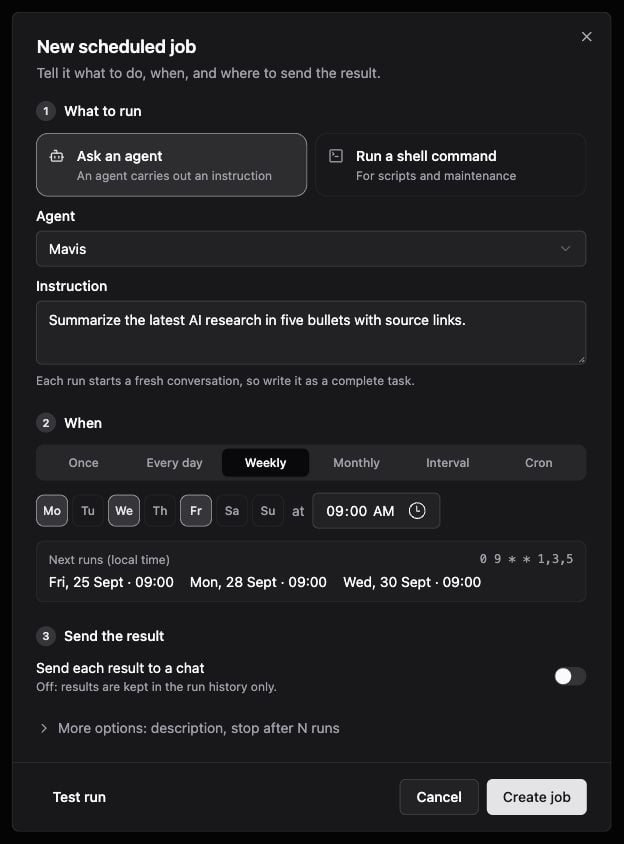
Go to **Settings → Agents → Scheduled Jobs** and select **Create a job**. You can also ask an Agent to schedule a task when its scheduling tools are available.
Name the job. Choose **Ask an agent**, select an Agent, and write a complete instruction. Each run starts a fresh conversation. For a script, choose **Run a shell command** and supply the command and any working-directory options shown.
Choose **Once**, **Every day**, **Weekly**, **Monthly**, **Interval**, or **Cron**. Check the **Next runs (local time)** preview before saving.
Leave **Send each result to a chat** off to keep results in run history. Turn it on to select a connected IM channel and chat. You may need to talk to the Agent in that chat first so it appears in the picker.
Use **Test run** to save and execute the job immediately, or **Create job** to save it for its scheduled time. Test run really executes the instruction or script; use a harmless example while learning.
## Read the run history
Open a job's history to see whether execution succeeded, the output, and any delivery error. **Open conversation** opens the Agent run; **Copy** copies its output. **Send again** attempts delivery again and sends a real message to the configured destination.
| Status | What to check |
| ------------------------- | ----------------------------------------------------------------- |
| Failed | The instruction, Agent tools, shell exit status, or error details |
| Succeeded / Not delivered | The job ran, but its IM destination or channel needs attention |
| Done / no more runs | A one-time job has finished and has no next scheduled run |
| Paused | Resume it if you want future runs |
Use **Needs attention** to find failed runs or failed deliveries. Search, status filters, and batch pause/resume help manage a larger list.
## Scheduling details
* Enconvo must be running and your Mac available for local jobs to execute. Do not treat a sleeping or offline Mac as an always-on scheduler.
* One-time jobs require a future date. After running, they have no next run.
* Monthly dates 29–31 are skipped in months without that date.
* Check the displayed local-time preview, especially after travel or a time-zone change.
* **More options** includes a description and a maximum run count.
* Run history is bounded; copy important outputs elsewhere before clearing history or deleting a job.
Related: [IM Channels](/integrations/messaging), [Agents](/ai/agents), [Workflows](/workflows/introduction).
## Watch the steps
Fill the name and instruction, switch to Weekly, choose weekdays, and compare Monthly. The draft is discarded; no job is created. This silent walkthrough uses real interface captures with pauses added for reading. The written steps above provide the same instructions.
 ## Create a job