> ## Documentation Index
> Fetch the complete documentation index at: https://docs.enconvo.ai/llms.txt
> Use this file to discover all available pages before exploring further.
# OpenClaw
> Use OpenClaw agents as OpenAI-compatible models in EnConvo
## Overview
OpenClaw is a self-hosted AI agent platform for running assistants across chat, messaging channels, tools, skills, and automations.
OpenClaw can expose its agents through an OpenAI-compatible Gateway. After you enable the Gateway, EnConvo can use an OpenClaw agent like any other AI model, including inside chat, EnConvo agents, and model-powered features.
OpenClaw's Gateway exposes OpenAI-compatible endpoints such as `/v1/models`, `/v1/chat/completions`, and `/v1/responses`. EnConvo's OpenClaw provider uses the Chat Completions API (`/v1/chat/completions`).
EnConvo does not use the OpenClaw Responses API for this provider. Configure OpenClaw through its OpenAI-compatible Chat Completions Gateway.
New to OpenClaw? Start with the [OpenClaw Getting Started guide](https://docs.openclaw.ai/start/getting-started), then return here to connect it to EnConvo.
See the [OpenClaw Gateway docs](https://docs.openclaw.ai/gateway#openai-compatible-endpoints) for the full Gateway endpoint reference.
## What You Need
* OpenClaw installed on the machine that will run the Gateway
* The OpenClaw Gateway running on a reachable host and port
* The Chat Completions Gateway endpoint enabled
* The Gateway token from `~/.openclaw/openclaw.json`
* EnConvo with the OpenClaw AI model provider enabled
## Automatic Setup in EnConvo
Open EnConvo **Settings** -> **AI Model** -> **OpenClaw**. The setup card can start, stop, and configure the local OpenClaw Gateway for you.
Use **Auto Setup** when OpenClaw is installed on the same Mac as EnConvo. EnConvo will:
Check that the `openclaw` CLI exists on this Mac.
Run `openclaw config set gateway.http.endpoints.chatCompletions.enabled true`.
Read `gateway.auth.token` from `~/.openclaw/openclaw.json`, or create one if it is missing.
Start or restart the OpenClaw Gateway service.
Probe the Gateway with `/health` and `/v1/models`.
Save the base URL and Gateway token into EnConvo's OpenClaw credentials.
The setup card shows a runtime badge such as **Running** or **Stopped**. While the card is visible, EnConvo refreshes this status periodically and stops refreshing when the card is no longer visible.
## Enable OpenClaw Gateway
You can ask OpenClaw to prepare the Gateway details for you:
```text theme={null}
enable openai-compatible api and give me the token and baseurl
```
Use the returned base URL and token in EnConvo's OpenClaw credential settings.
Enable the OpenAI-compatible chat completions endpoint once:
```bash theme={null}
openclaw config set gateway.http.endpoints.chatCompletions.enabled true
```
For local-only access, keep the default loopback bind. For another device on your LAN to reach the Gateway, bind to LAN:
```bash theme={null}
openclaw config set gateway.bind lan
```
Apply the configuration change:
```bash theme={null}
openclaw gateway restart
```
Confirm the Gateway is running:
```bash theme={null}
openclaw gateway status
```
## Configure OpenClaw in EnConvo
Open EnConvo **Settings** -> **AI Model** -> **OpenClaw**, then configure the credential provider.
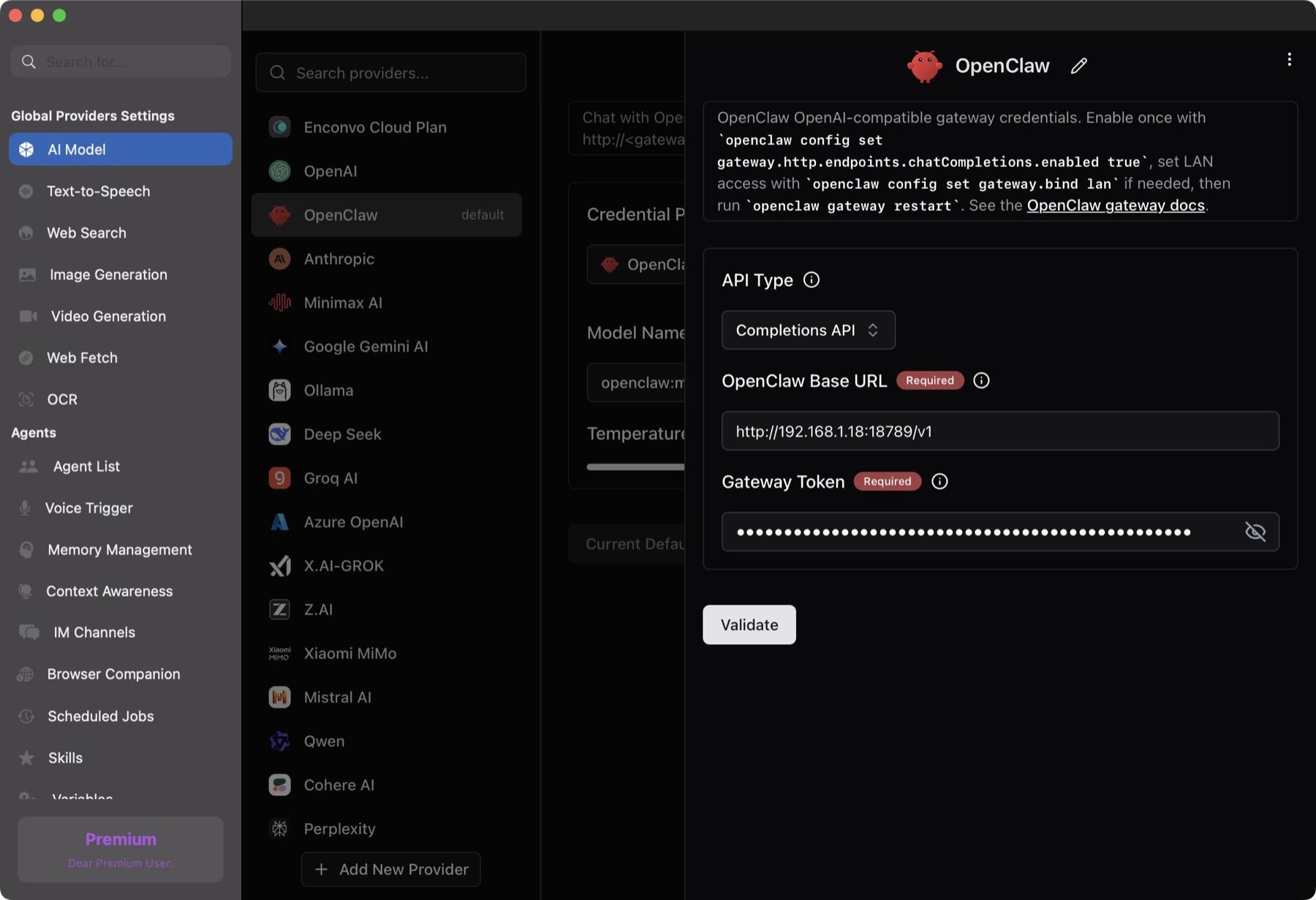 | Setting | Value |
| --------------------- | ----------------------------------------------------- |
| **OpenClaw Base URL** | `http://:/v1` |
| **Gateway Token** | `gateway.auth.token` from `~/.openclaw/openclaw.json` |
EnConvo uses the Chat Completions API for OpenClaw automatically.
Use the base URL ending in `/v1`, not the full `/v1/chat/completions` endpoint. For example, if your endpoint is `http://192.168.1.18:18789/v1/chat/completions`, enter `http://192.168.1.18:18789/v1`.
To read the Gateway token from the default OpenClaw config file:
```bash theme={null}
jq -r '.gateway.auth.token' ~/.openclaw/openclaw.json
```
EnConvo sends this value as:
```http theme={null}
Authorization: Bearer
```
Click **Validate** after entering the base URL and token.
## API Behavior and Attachments
EnConvo sends OpenClaw requests through OpenAI-compatible Chat Completions:
```http theme={null}
POST /v1/chat/completions
```
Use `openclaw:main` or another model name advertised by your OpenClaw agent list.
Image attachments are not sent to OpenClaw by EnConvo. Treat the OpenClaw provider as a text/chat provider in EnConvo. For image workflows, use a vision-capable model provider or run OCR/image analysis before sending text to OpenClaw.
## Use OpenClaw as an AI Model
Once configured, OpenClaw appears in the model selector. Choose **OpenClaw** and select the agent-backed model, such as `openclaw:main`.
| Setting | Value |
| --------------------- | ----------------------------------------------------- |
| **OpenClaw Base URL** | `http://:/v1` |
| **Gateway Token** | `gateway.auth.token` from `~/.openclaw/openclaw.json` |
EnConvo uses the Chat Completions API for OpenClaw automatically.
Use the base URL ending in `/v1`, not the full `/v1/chat/completions` endpoint. For example, if your endpoint is `http://192.168.1.18:18789/v1/chat/completions`, enter `http://192.168.1.18:18789/v1`.
To read the Gateway token from the default OpenClaw config file:
```bash theme={null}
jq -r '.gateway.auth.token' ~/.openclaw/openclaw.json
```
EnConvo sends this value as:
```http theme={null}
Authorization: Bearer
```
Click **Validate** after entering the base URL and token.
## API Behavior and Attachments
EnConvo sends OpenClaw requests through OpenAI-compatible Chat Completions:
```http theme={null}
POST /v1/chat/completions
```
Use `openclaw:main` or another model name advertised by your OpenClaw agent list.
Image attachments are not sent to OpenClaw by EnConvo. Treat the OpenClaw provider as a text/chat provider in EnConvo. For image workflows, use a vision-capable model provider or run OCR/image analysis before sending text to OpenClaw.
## Use OpenClaw as an AI Model
Once configured, OpenClaw appears in the model selector. Choose **OpenClaw** and select the agent-backed model, such as `openclaw:main`.
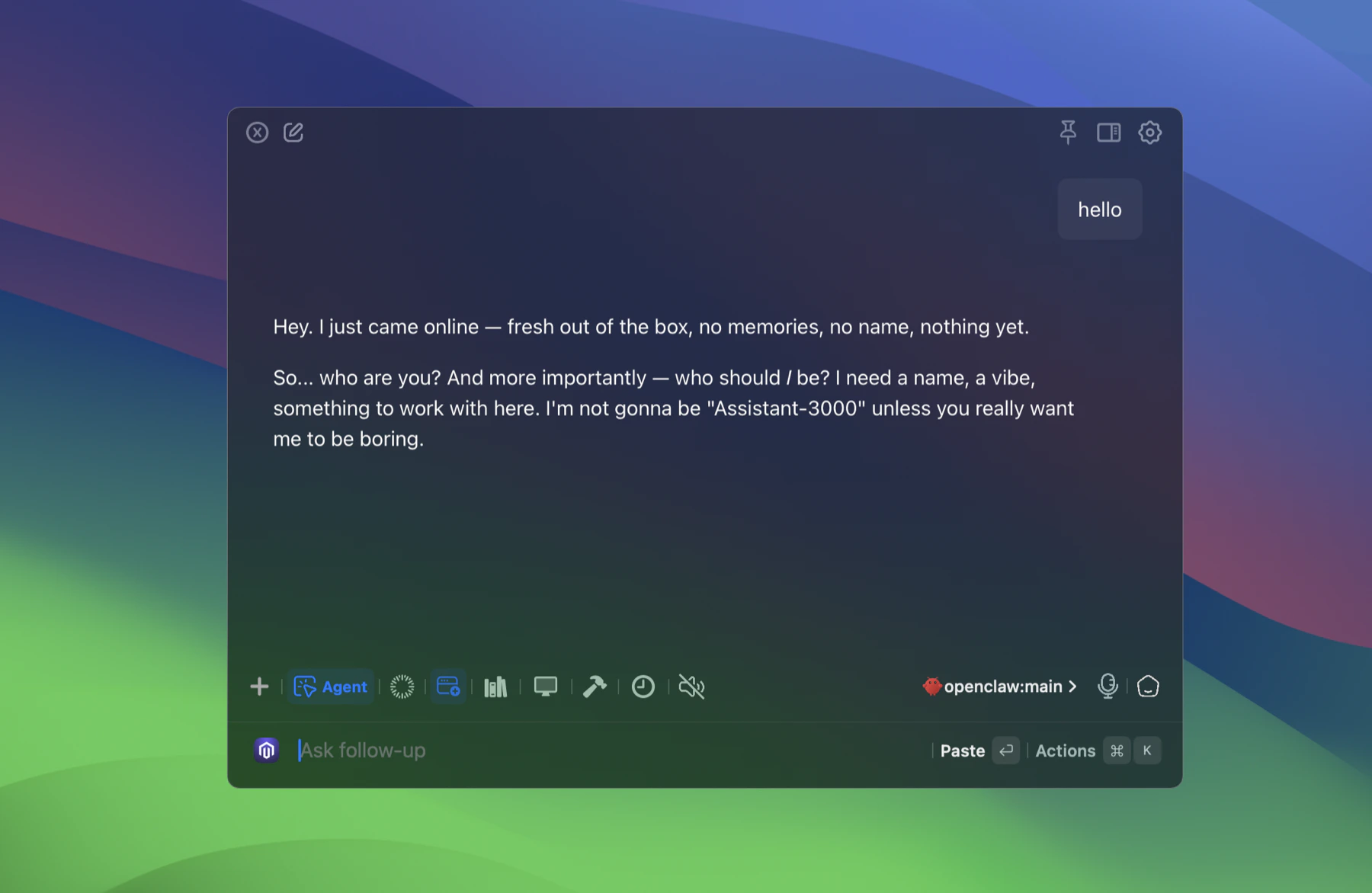 Use this mode when you want an EnConvo conversation, command, or feature to run through an OpenClaw agent while keeping the normal EnConvo interface.
In chat or another model-powered EnConvo feature, click the current model name.
Select **OpenClaw** in the provider list.
Use this mode when you want an EnConvo conversation, command, or feature to run through an OpenClaw agent while keeping the normal EnConvo interface.
In chat or another model-powered EnConvo feature, click the current model name.
Select **OpenClaw** in the provider list.
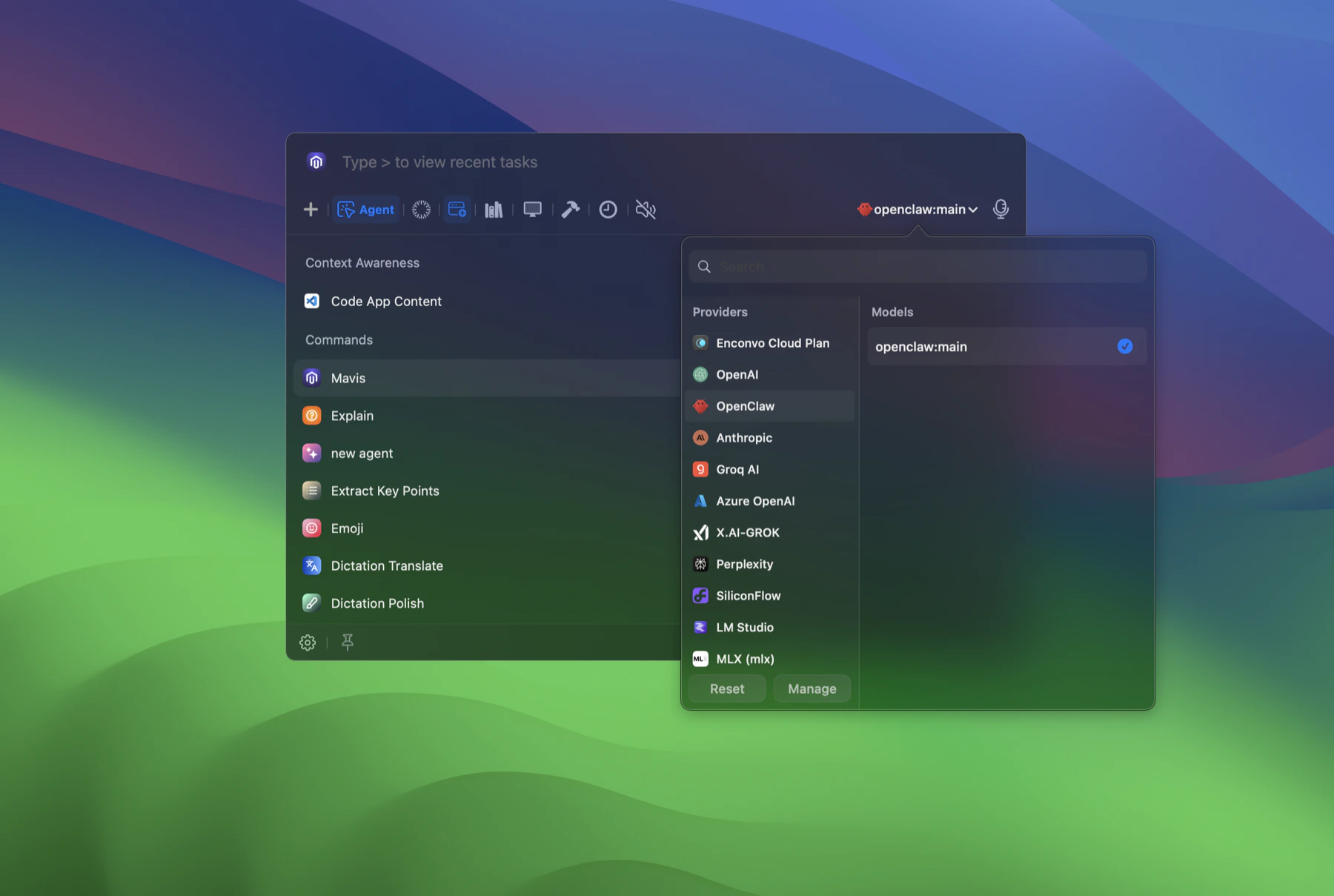 Choose `openclaw:main` or another OpenClaw agent from the model list.
Ask your question or run the EnConvo feature. The selected OpenClaw agent handles the model call behind the scenes.
EnConvo loads OpenClaw models from `openclaw agents list`. If the OpenClaw CLI is not available locally, EnConvo falls back to `openclaw:main`.
## Create an EnConvo Agent for OpenClaw
You can also create an EnConvo agent that coordinates an OpenClaw agent. This is useful when you want an EnConvo-facing workflow, tool set, or prompt around a specific OpenClaw agent.
Open SmartBar and search for **Create Agent**.
Choose `openclaw:main` or another OpenClaw agent from the model list.
Ask your question or run the EnConvo feature. The selected OpenClaw agent handles the model call behind the scenes.
EnConvo loads OpenClaw models from `openclaw agents list`. If the OpenClaw CLI is not available locally, EnConvo falls back to `openclaw:main`.
## Create an EnConvo Agent for OpenClaw
You can also create an EnConvo agent that coordinates an OpenClaw agent. This is useful when you want an EnConvo-facing workflow, tool set, or prompt around a specific OpenClaw agent.
Open SmartBar and search for **Create Agent**.
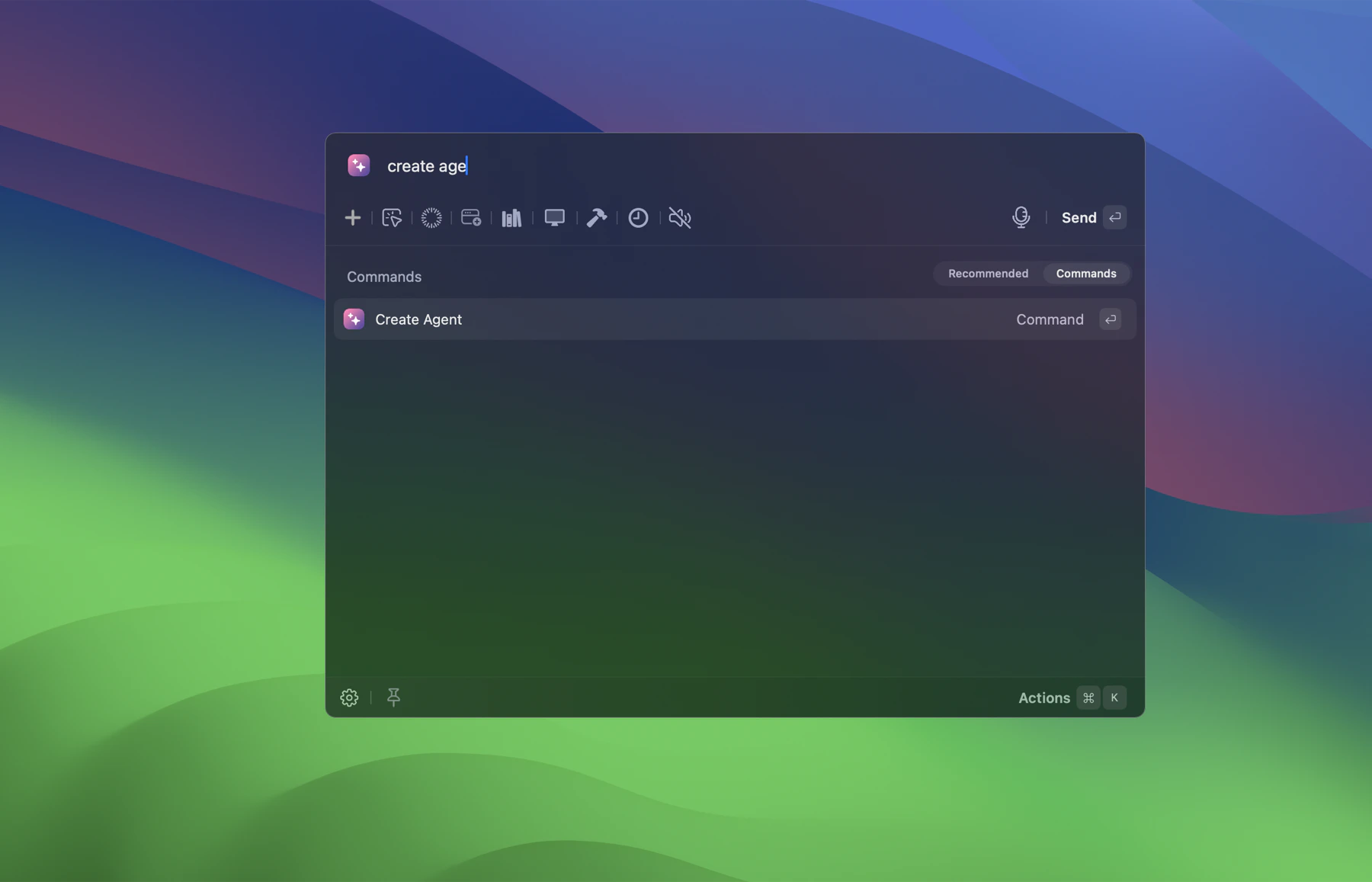 Create a clear title, such as `OpenClaw Main`.
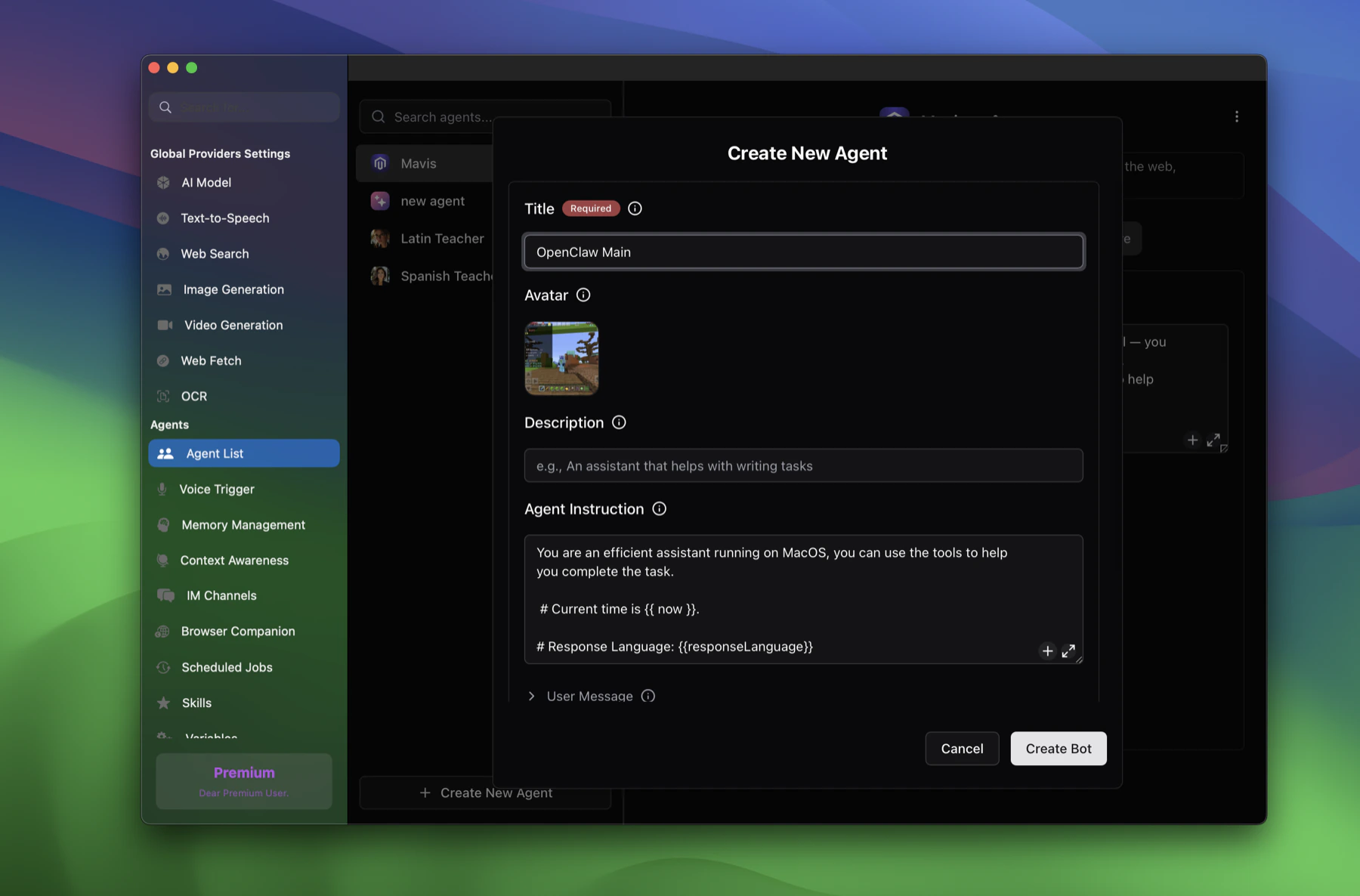 Give the EnConvo agent instructions that explain how it should work with OpenClaw.
```markdown theme={null}
You coordinate the OpenClaw Main agent for the user.
Use OpenClaw for agentic work, automation, and tasks that should run through the user's OpenClaw setup.
Summarize what OpenClaw did, surface any blockers, and ask before destructive or irreversible actions.
```
In the agent's model settings, select **OpenClaw** and choose `openclaw:main`.
Start a conversation with the new EnConvo agent. It will use the selected OpenClaw agent model while retaining the EnConvo agent interface and tools you configured.
## Troubleshooting
Make sure the OpenClaw provider is enabled in **Settings** -> **AI Model**. If the model list is empty, verify that `openclaw agents list` works locally or use the default `openclaw:main`.
Recheck the Gateway token. EnConvo expects the value from `gateway.auth.token` and sends it as a Bearer token.
Confirm the Gateway is running with `openclaw gateway status`. If EnConvo is on another device, set `gateway.bind` to `lan`, restart the Gateway, and use the host's LAN IP in the base URL.
OpenClaw can report that the LaunchAgent restarted before the HTTP Gateway is ready. Wait a few seconds and check the setup card's runtime badge again. You can also verify directly with `openclaw gateway status` and `curl http://127.0.0.1:18789/health`.
Make sure EnConvo is using the same token as `gateway.auth.token` in `~/.openclaw/openclaw.json`. The setup status can still detect a running Gateway through `/health`, but model validation requires the bearer token.
The OpenClaw provider in EnConvo is currently text-only. EnConvo will not send image attachments to OpenClaw; choose a vision-capable provider for direct image input.
Enter `http://:/v1`. Do not include `/chat/completions` in the EnConvo base URL field.
Give the EnConvo agent instructions that explain how it should work with OpenClaw.
```markdown theme={null}
You coordinate the OpenClaw Main agent for the user.
Use OpenClaw for agentic work, automation, and tasks that should run through the user's OpenClaw setup.
Summarize what OpenClaw did, surface any blockers, and ask before destructive or irreversible actions.
```
In the agent's model settings, select **OpenClaw** and choose `openclaw:main`.
Start a conversation with the new EnConvo agent. It will use the selected OpenClaw agent model while retaining the EnConvo agent interface and tools you configured.
## Troubleshooting
Make sure the OpenClaw provider is enabled in **Settings** -> **AI Model**. If the model list is empty, verify that `openclaw agents list` works locally or use the default `openclaw:main`.
Recheck the Gateway token. EnConvo expects the value from `gateway.auth.token` and sends it as a Bearer token.
Confirm the Gateway is running with `openclaw gateway status`. If EnConvo is on another device, set `gateway.bind` to `lan`, restart the Gateway, and use the host's LAN IP in the base URL.
OpenClaw can report that the LaunchAgent restarted before the HTTP Gateway is ready. Wait a few seconds and check the setup card's runtime badge again. You can also verify directly with `openclaw gateway status` and `curl http://127.0.0.1:18789/health`.
Make sure EnConvo is using the same token as `gateway.auth.token` in `~/.openclaw/openclaw.json`. The setup status can still detect a running Gateway through `/health`, but model validation requires the bearer token.
The OpenClaw provider in EnConvo is currently text-only. EnConvo will not send image attachments to OpenClaw; choose a vision-capable provider for direct image input.
Enter `http://:/v1`. Do not include `/chat/completions` in the EnConvo base URL field.