> ## Documentation Index
> Fetch the complete documentation index at: https://docs.enconvo.ai/llms.txt
> Use this file to discover all available pages before exploring further.
# Voice Notes
> Save a spoken note into a knowledge base.
Voice Note records an idea into a knowledge base so you can find it later. Use [Dictation](/features/dictation) when you want text inserted into another app instead.
 ## Save a note
1. Create or choose a [Knowledge Base](/ai/knowledge-base).
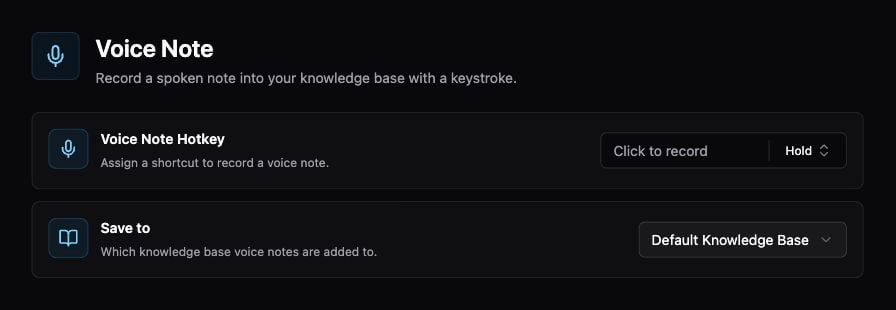
2. Open **Settings → Memory → Voice Note**.
3. Set **Save to** to the destination knowledge base and review **Voice Note Hotkey**.
4. Invoke the hotkey and record a short note. End the recording using the recording controls.
5. Open the destination knowledge base and review the saved item and transcription.
## Make notes easier to find
Include the subject and useful names in the recording: “Project Atlas: ask the designer for the updated onboarding icons.” Review important names, numbers, and dates in the transcript before relying on them.
## Troubleshooting
If there is no audio, check Microphone permission and the selected input device. If the note is not where expected, check **Save to**. If transcription fails, inspect the error and the configured speech provider rather than recording the same note repeatedly.
See [Speech Assets](/configuration/speech-assets) for vocabulary and speaker management, and [Quick Capture](/features/quick-capture) for saving visible app content.
## Save a note
1. Create or choose a [Knowledge Base](/ai/knowledge-base).
2. Open **Settings → Memory → Voice Note**.
3. Set **Save to** to the destination knowledge base and review **Voice Note Hotkey**.
4. Invoke the hotkey and record a short note. End the recording using the recording controls.
5. Open the destination knowledge base and review the saved item and transcription.
## Make notes easier to find
Include the subject and useful names in the recording: “Project Atlas: ask the designer for the updated onboarding icons.” Review important names, numbers, and dates in the transcript before relying on them.
## Troubleshooting
If there is no audio, check Microphone permission and the selected input device. If the note is not where expected, check **Save to**. If transcription fails, inspect the error and the configured speech provider rather than recording the same note repeatedly.
See [Speech Assets](/configuration/speech-assets) for vocabulary and speaker management, and [Quick Capture](/features/quick-capture) for saving visible app content.