> ## Documentation Index
> Fetch the complete documentation index at: https://docs.enconvo.ai/llms.txt
> Use this file to discover all available pages before exploring further.
# Desktop Pets
> Keep an animated companion and session cards on your desktop.
The desktop Pet provides a small animated entry point to Enconvo. It is separate from a voice-enabled [Avatar](/features/avatar).
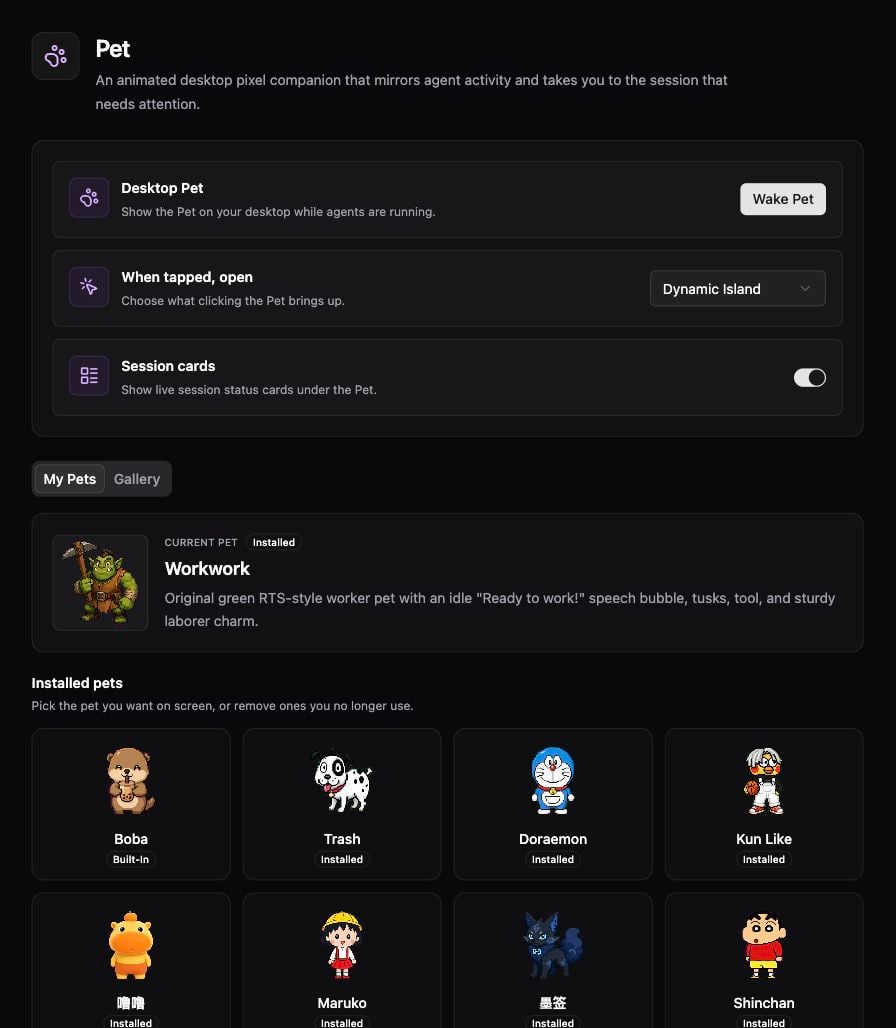 ## Choose a Pet
1. Open **Settings → Primary Function Area → Pet**.
2. Choose a character in **My Pets** or **Gallery**, then select **Wake Pet** to show it.
3. Set **When tapped, open** to the destination you prefer.
4. Review **Session cards** and the Pet size controls.
5. Return to the desktop and tap the Pet to open the configured destination.
## Custom Pets
The Pet settings page also provides **Custom pets** controls. Use **Open folder** to locate custom Pet packages and follow the supported format shown in your build; a character image alone is not necessarily an installable animated Pet package. After adding a supported package, select the Pet in **My Pets**.
Before removing a custom Pet, read the confirmation so you know which local asset is being removed.
## If the Pet is missing
Check **Wake Pet**, the selected installed character, and the Pet size. If tapping opens an unexpected surface, review **When tapped, open**. For voice conversations and Agent-specific characters, use the Avatar gallery instead.
## Choose a Pet
1. Open **Settings → Primary Function Area → Pet**.
2. Choose a character in **My Pets** or **Gallery**, then select **Wake Pet** to show it.
3. Set **When tapped, open** to the destination you prefer.
4. Review **Session cards** and the Pet size controls.
5. Return to the desktop and tap the Pet to open the configured destination.
## Custom Pets
The Pet settings page also provides **Custom pets** controls. Use **Open folder** to locate custom Pet packages and follow the supported format shown in your build; a character image alone is not necessarily an installable animated Pet package. After adding a supported package, select the Pet in **My Pets**.
Before removing a custom Pet, read the confirmation so you know which local asset is being removed.
## If the Pet is missing
Check **Wake Pet**, the selected installed character, and the Pet size. If tapping opens an unexpected surface, review **When tapped, open**. For voice conversations and Agent-specific characters, use the Avatar gallery instead.