> ## Documentation Index
> Fetch the complete documentation index at: https://docs.enconvo.ai/llms.txt
> Use this file to discover all available pages before exploring further.
# Dictionary and Speakers
> Maintain recognition vocabulary and speaker names.
Open **Settings → Speech Assets** to manage vocabulary and speakers used by speech features.
## Dictionary
Add product names, technical terms, acronyms, or unusual spellings to **Dictionary**. Each entry contains a word and an optional description.
1. Open **Dictionary** and add an entry.
2. Enter the preferred spelling and a short explanation if useful.
3. Save it and try a short recording containing the word.
4. Review the transcription; provider support and audio quality still affect recognition.
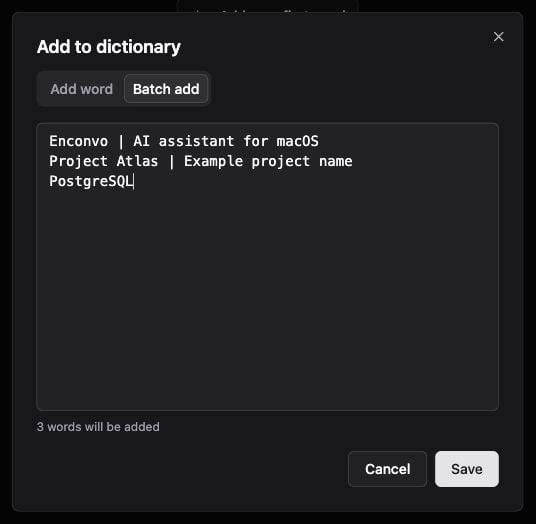
For batch entry, use one term per line. Separate its description with `|`:
```text theme={null}
Enconvo | AI assistant for macOS
Project Atlas | Internal project name
PostgreSQL
```
Use search and edit controls to maintain the list. Batch deletion requires selecting the intended entries and confirming the action.
## Speakers
**Speakers** manages known speaker names for recordings and transcripts. Review speaker assignments within a recording before renaming a speaker. A recognized voice or diarization label can be wrong, especially with overlapping speech.
## Choose where to use them
[Dictation](/features/dictation), [Meeting Recording](/features/meeting-recording), [Transcription](/features/transcription), and [Live Captioning](/features/live-captioning) use different speech configurations. Check the provider settings for language hints, hot words, diarization, and other supported options rather than assuming all providers apply the same vocabulary behavior.
## Watch the steps
Enter a term and description, switch to Batch add, and enter three example lines. The draft is discarded; no dictionary entry is saved. This silent walkthrough uses real interface captures with pauses added for reading. The written steps above provide the same instructions.
 ## Dictionary
Add product names, technical terms, acronyms, or unusual spellings to **Dictionary**. Each entry contains a word and an optional description.
1. Open **Dictionary** and add an entry.
2. Enter the preferred spelling and a short explanation if useful.
3. Save it and try a short recording containing the word.
4. Review the transcription; provider support and audio quality still affect recognition.
For batch entry, use one term per line. Separate its description with `|`:
```text theme={null}
Enconvo | AI assistant for macOS
Project Atlas | Internal project name
PostgreSQL
```
Use search and edit controls to maintain the list. Batch deletion requires selecting the intended entries and confirming the action.
## Speakers
**Speakers** manages known speaker names for recordings and transcripts. Review speaker assignments within a recording before renaming a speaker. A recognized voice or diarization label can be wrong, especially with overlapping speech.
## Choose where to use them
[Dictation](/features/dictation), [Meeting Recording](/features/meeting-recording), [Transcription](/features/transcription), and [Live Captioning](/features/live-captioning) use different speech configurations. Check the provider settings for language hints, hot words, diarization, and other supported options rather than assuming all providers apply the same vocabulary behavior.
## Watch the steps
Enter a term and description, switch to Batch add, and enter three example lines. The draft is discarded; no dictionary entry is saved. This silent walkthrough uses real interface captures with pauses added for reading. The written steps above provide the same instructions.
## Dictionary
Add product names, technical terms, acronyms, or unusual spellings to **Dictionary**. Each entry contains a word and an optional description.
1. Open **Dictionary** and add an entry.
2. Enter the preferred spelling and a short explanation if useful.
3. Save it and try a short recording containing the word.
4. Review the transcription; provider support and audio quality still affect recognition.
For batch entry, use one term per line. Separate its description with `|`:
```text theme={null}
Enconvo | AI assistant for macOS
Project Atlas | Internal project name
PostgreSQL
```
Use search and edit controls to maintain the list. Batch deletion requires selecting the intended entries and confirming the action.
## Speakers
**Speakers** manages known speaker names for recordings and transcripts. Review speaker assignments within a recording before renaming a speaker. A recognized voice or diarization label can be wrong, especially with overlapping speech.
## Choose where to use them
[Dictation](/features/dictation), [Meeting Recording](/features/meeting-recording), [Transcription](/features/transcription), and [Live Captioning](/features/live-captioning) use different speech configurations. Check the provider settings for language hints, hot words, diarization, and other supported options rather than assuming all providers apply the same vocabulary behavior.
## Watch the steps
Enter a term and description, switch to Batch add, and enter three example lines. The draft is discarded; no dictionary entry is saved. This silent walkthrough uses real interface captures with pauses added for reading. The written steps above provide the same instructions.